
Use case · Check-in / check-out
What changed between check-in and check-out?
The vehicle is scanned when it arrives and again when it leaves. Both reports open side by side, so every difference is visible at a glance.
Talk to us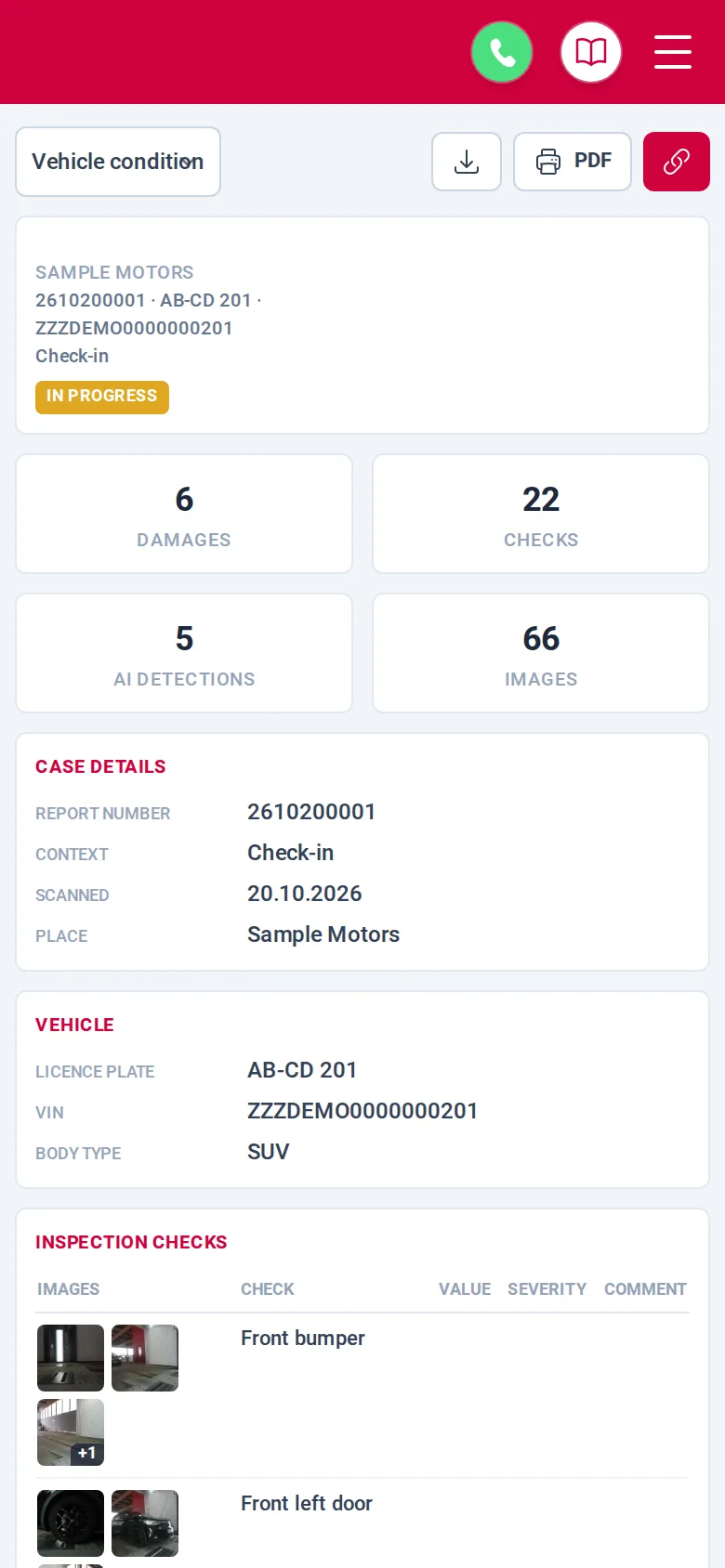
What you get
- Every scan becomes a full report with photos, checks, damage and tyre depths.
- Two reports of the same vehicle line up row by row, oldest on the left.
- Damage found at check-in sits right next to the check-out, so nothing is argued about later.
How it works
Step 1: At check-in the vehicle drives through the scanner. The report lists every check, photo and damage, AI detections included.
Step 2: At check-out the same vehicle is scanned again and gets its own report.
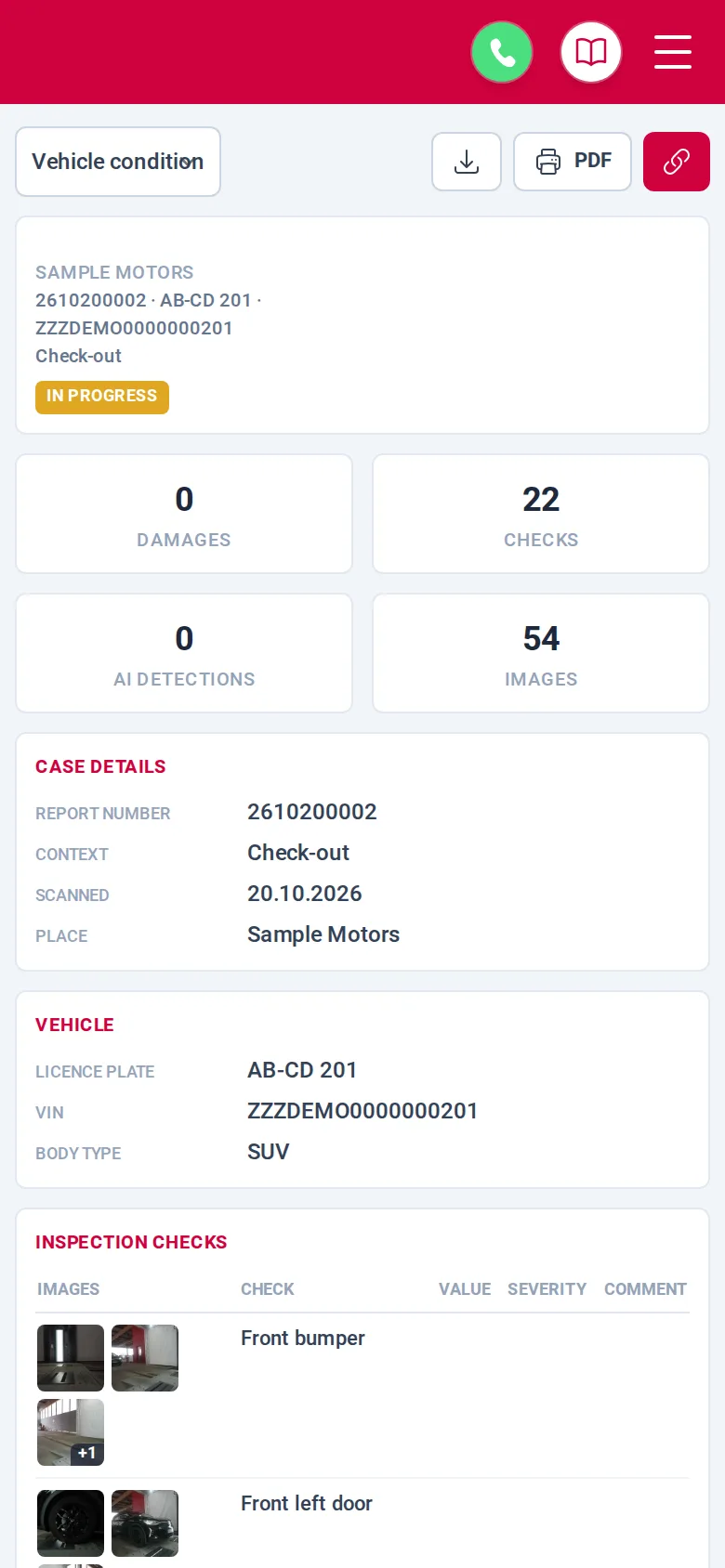
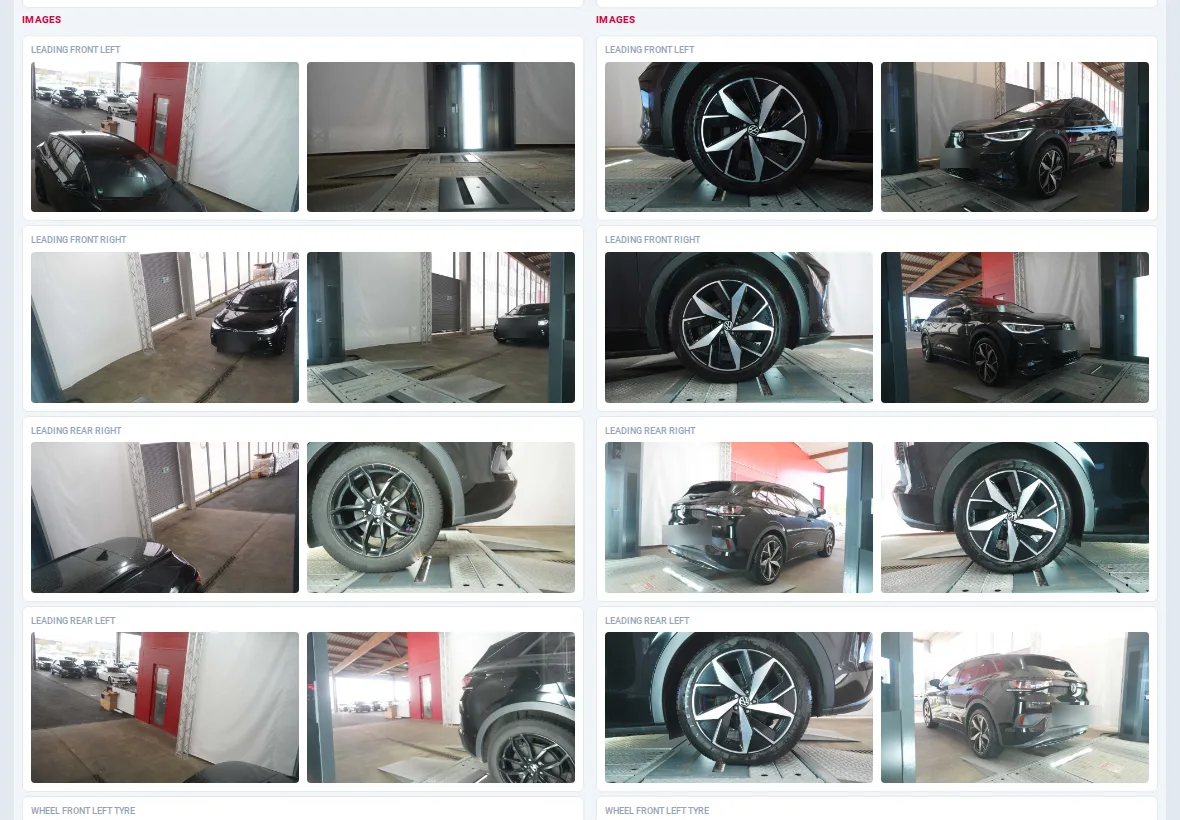
Step 3: In Fleet Expert you select both cases and click Compare. The reports open side by side, each corner photo on the same row.
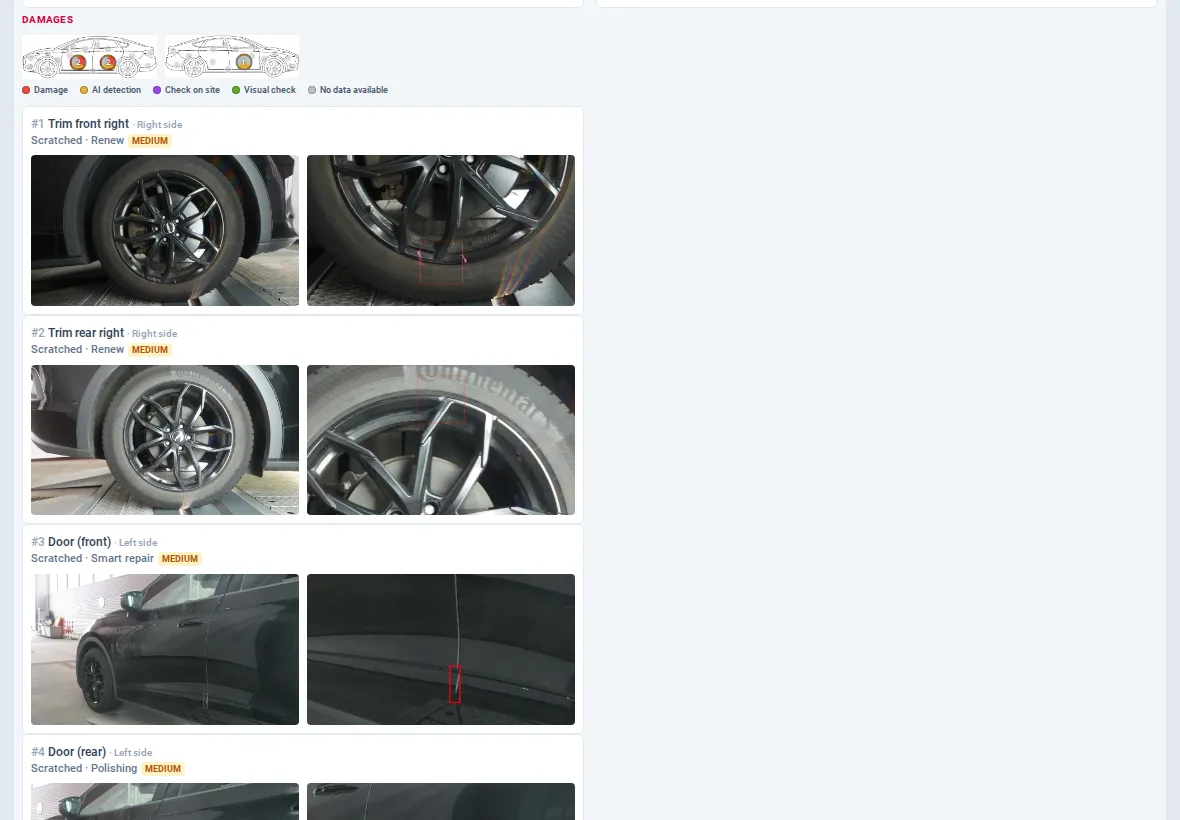
Step 4: The damage of check-in sits next to the check-out. Here six scratches at check-in, none left at check-out after the repair.
Screens from the M:FLEET app (test data)
What you need
- A drive-through scanner or the M:FLEET app.
- A check-in and a check-out process.
- A sign-in to Fleet Expert.
Both processes set up, comparison included
We set up check-in and check-out with you, matched check by check.
Every report of a vehicle can then be compared with its previous one.
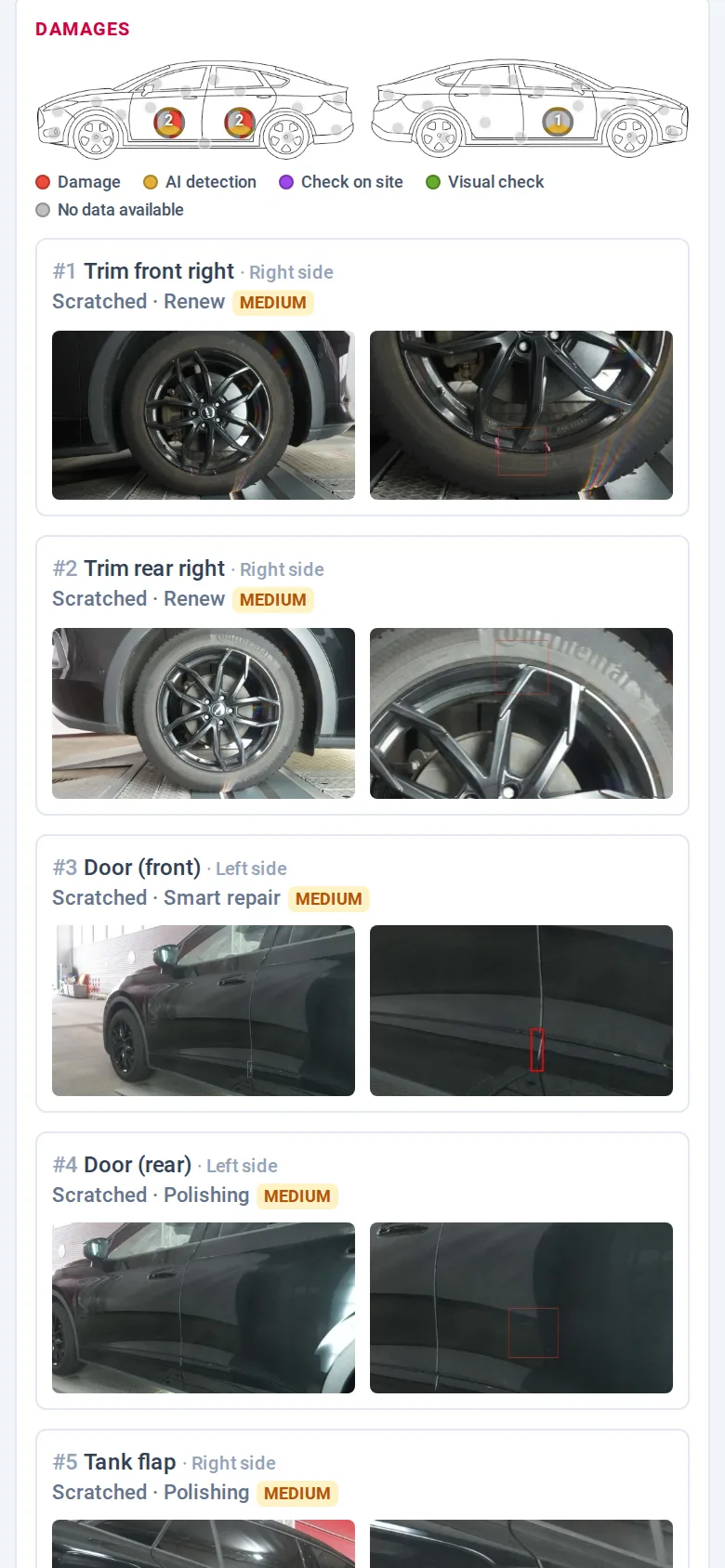
Every damage with its photos 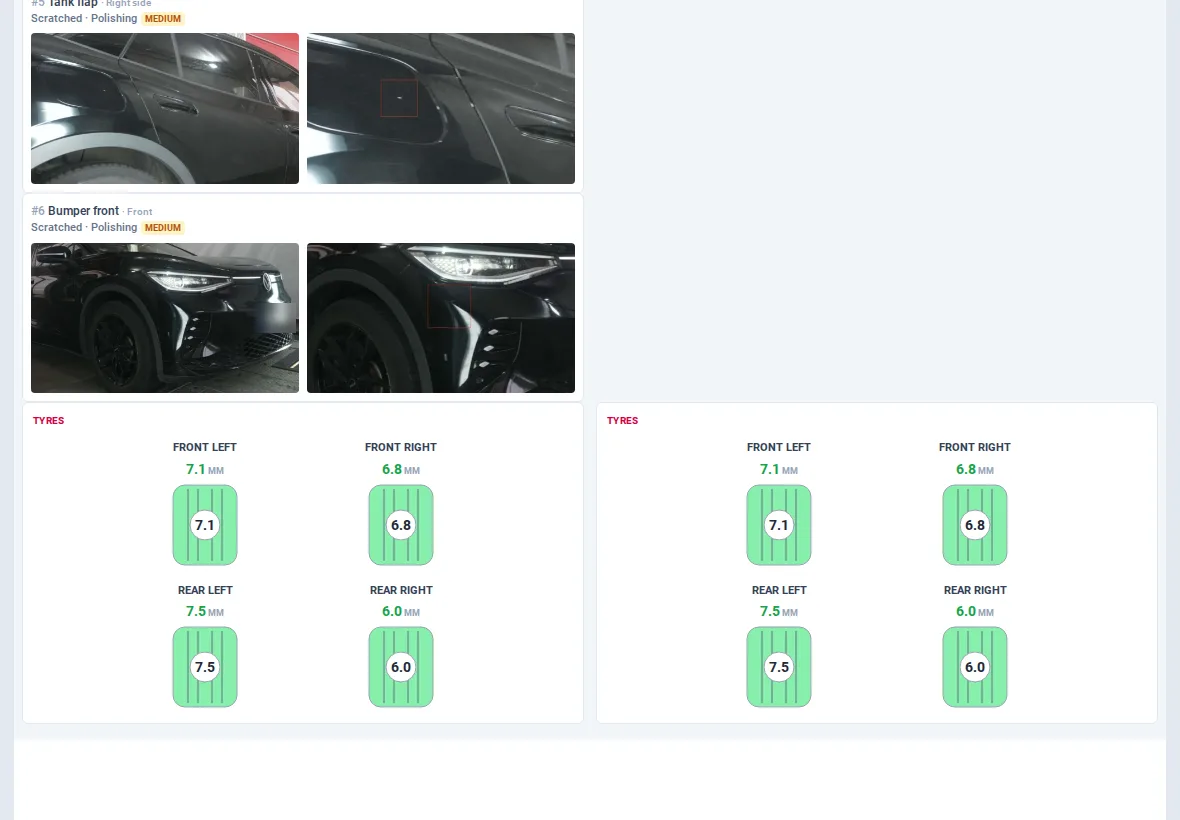
Tyre depths line up too
Share
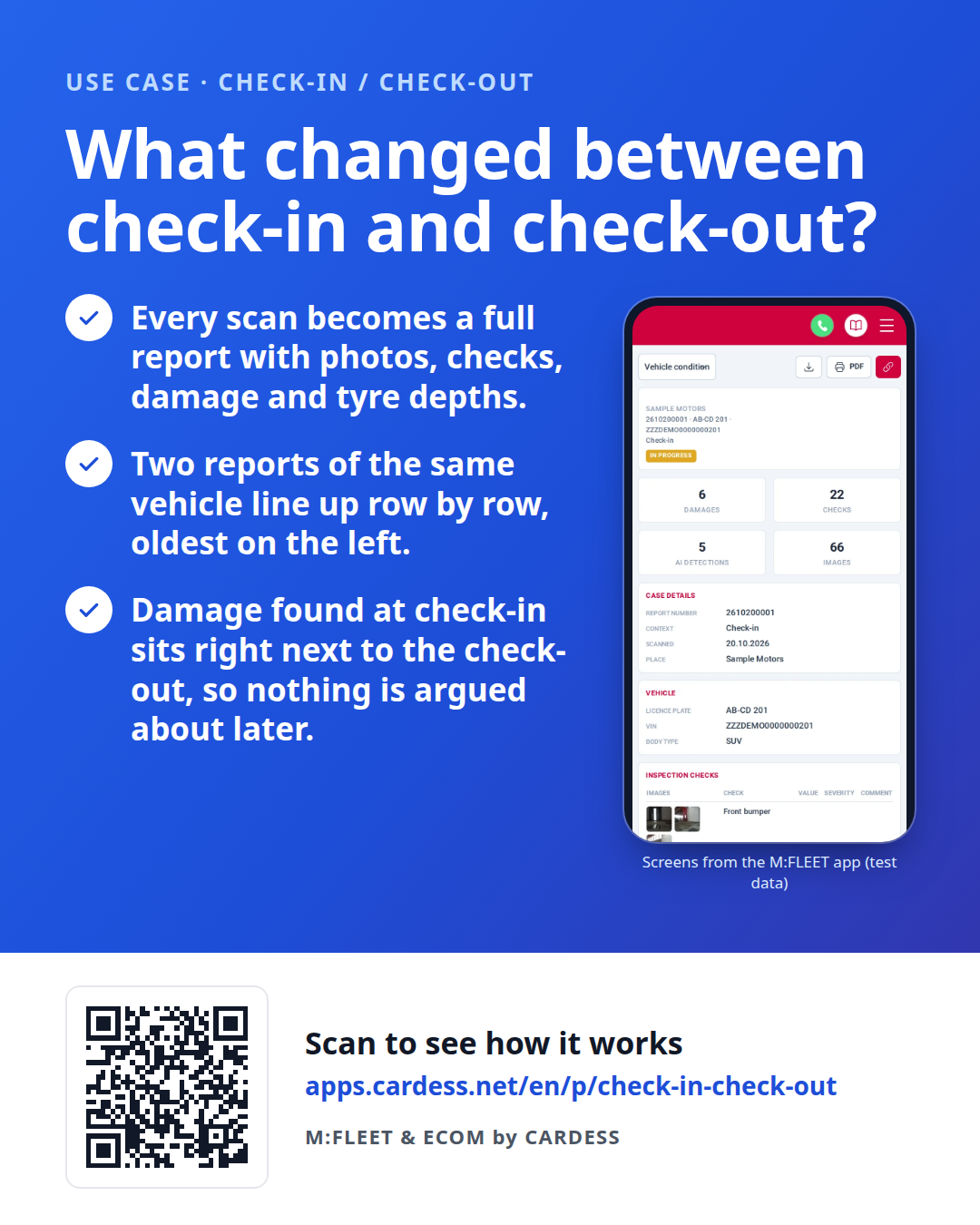
Pass the flyer on to your team or print it for the counter.